
Set Up Gift Certificates
What Are Gift Certificates?
Gift certificates let your guests purchase a voucher for a stay at your property. They make great gifts for birthdays, anniversaries, holidays, and special occasions. Recipients can redeem them when booking, and you can track the balance of each certificate in your admin panel.
How to Enable Gift Certificates
Step 1: Open Organisation Settings
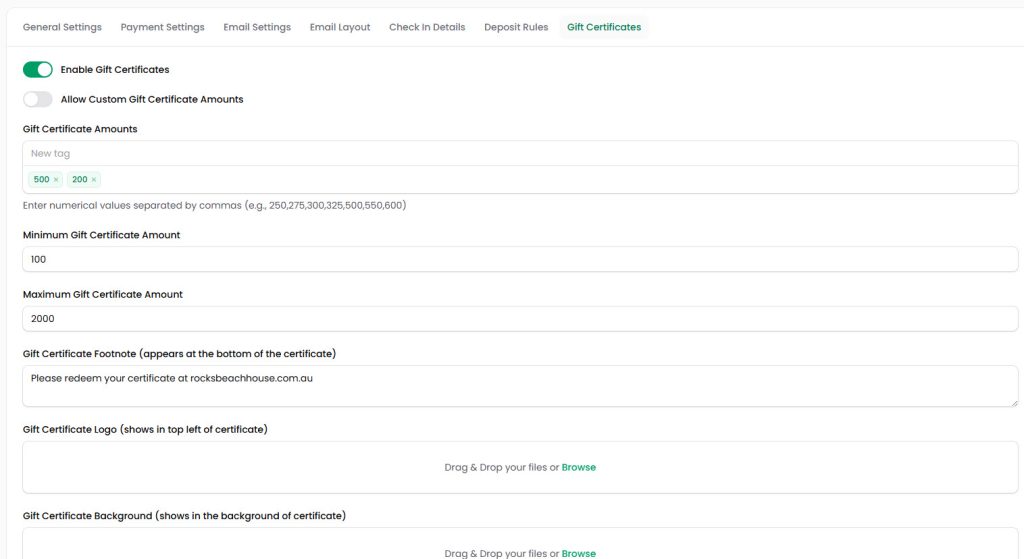
From the sidebar, click Settings to open the Edit Organisation page. Then click the Gift Certificates tab at the top.
Step 2: Enable the Feature
Toggle Enable Gift Certificates to on. This activates the gift certificate feature for your organisation.
Step 3: Set Certificate Amounts
In the Gift Certificate Amounts field, enter the preset dollar values you want to offer. Type a number and press Enter to add it as a tag. For example, you might offer $200, $300, and $500 certificates.
If you want guests to choose their own amount, toggle Allow Custom Gift Certificate Amounts to on. You can then set a Minimum Gift Certificate Amount and Maximum Gift Certificate Amount to control the range.
Step 4: Add a Footnote
The Gift Certificate Footnote field lets you add text that appears at the bottom of every certificate. Use this for redemption instructions, terms and conditions, or your website URL.
Step 5: Customise the Certificate Design
You can upload two images to brand your certificates:
- Gift Certificate Logo — appears in the top left of the certificate. Upload your property logo or brand image. Make it one with a transparent background so that it blends into the certificate.
- Gift Certificate Background — appears as the background of the certificate. Use a photo of your property or a branded design. Try to keep it light in colour too so the text will not be distorted as the text goes on top of the image.
Drag and drop your files into the upload areas, or click Browse to select them from your computer.
Step 6: Save Your Settings
Click the green Save changes button to apply your gift certificate configuration.
Managing Gift Certificates
To view and manage all issued certificates, go to Orders > Gift Certificates in the sidebar.
Viewing Certificates
The Gift Certificates page shows a table with all certificates, including:
- Certificate Number — the unique code for the certificate
- Customer — who purchased the certificate
- Recipient — who the certificate was gifted to
- Amount — the original certificate value
- Remaining — the unused balance (supports partial redemption)
- Status — whether the certificate is Active or used
- Created Date — when the certificate was issued
Use the search bar to find specific certificates. You can filter by status using the filter icon.
Creating a New Certificate
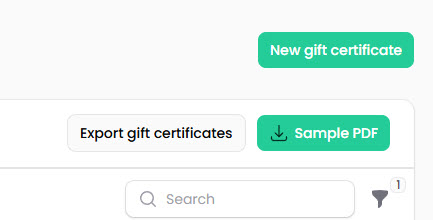
Click the New gift certificate button in the top-right corner to create a certificate manually. This is useful for issuing certificates directly to guests outside the normal purchasing flow.
Certificate Actions

Each certificate in the list has the following actions:
- Edit — modify the certificate details
- View Order — see the original purchase order
- Download PDF — download the certificate as a PDF to send to the recipient
- Delete — remove the certificate
Exporting and Previewing
Use the Export gift certificates button to download a list of all certificates. Click Sample PDF to preview what your certificates look like with your current logo, background, and footnote settings.
Tips
- Promote gift certificates during holidays. Christmas, Valentine’s Day, and Mother’s Day are popular times for holiday rental gift vouchers.
- Use a property photo as the background. This makes certificates more personal and appealing to recipients.
- Set sensible min/max amounts if you allow custom values. This prevents certificates that are too small to be useful or too large to manage.
- Check remaining balances regularly. The Remaining column tells you how much of each certificate is still unused.