Customise Your Dashboard
Book It Fast gives you two dashboard views: a Default Dashboard with setup guides, statistics, and charts, and a Custom Dashboard that you can personalise with the widgets that matter most to you.
This guide walks you through how to switch between dashboards, add and remove widgets, change the layout, and save your preferences.
Default Dashboard vs Custom Dashboard
When you first log in, you will see the Default Dashboard. This includes your onboarding setup cards, upcoming bookings, occupancy rate, bookings by channel, revenue per month, and monthly statistics.
The Custom Dashboard lets you choose exactly which widgets to display and how they are arranged. You can switch between the two views at any time without losing your customisations.

Switching to the Custom Dashboard
To switch to the custom dashboard:
- Look for the two green buttons in the top-right corner of your Dashboard page.
- Click Customise Dashboard to open the custom dashboard view.
You will now see a different layout with a booking timeline and your chosen widgets. To return to the default view at any time, click Use Default Dashboard.
Unlocking the Dashboard for Editing
The custom dashboard is locked by default to prevent accidental changes. To start customising:
- Click the Lock icon (padlock) in the toolbar at the top of the custom dashboard.
- The dashboard will enter edit mode. You will see additional controls appear: column layout buttons, a widget selector dropdown, and per-widget editing buttons.
When you are finished editing, click the Lock button again to lock the dashboard and prevent accidental changes.

Changing the Column Layout
You can choose how many columns your dashboard uses. In edit mode, you will see layout buttons near the top of the page:
- 1 column Displays widgets in a single full-width column, ideal for timeline and calendar views.
- 2 columns Splits the dashboard into two columns for a balanced view.
- 3 columns Uses three columns for a compact overview with more widgets visible at once.
Simply click the number button (1, 2, or 3) to change the layout. Your choice is saved when you click Save.
Adding Widgets
To add a widget to your custom dashboard:
- Make sure the dashboard is unlocked (click the padlock icon if needed).
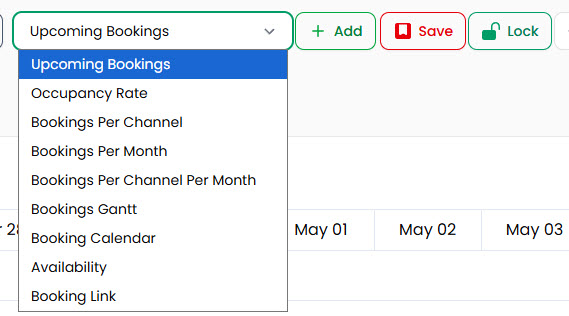
- Use the widget selector dropdown in the toolbar. Click the dropdown to see the available widgets.
- Select the widget you want to add from the list.
- Click the green + Add button.
- The new widget will appear on your dashboard.
- Click Save to keep your changes.
Available Widgets
You can add any of the following widgets to your custom dashboard:
- Upcoming Bookings — Shows your next bookings with guest names, dates, and amounts.
- Occupancy Rate — A pie chart showing how much of your calendar is booked versus vacant.
- Bookings Per Channel — A pie chart breaking down bookings by source (Airbnb, Book It Fast, Booking.com, VRBO, etc.).
- Bookings Per Month — A bar chart showing the number of bookings each month.
- Bookings Per Channel Per Month — A stacked bar chart showing bookings by channel over time.
- Bookings Gantt — A timeline view showing bookings across all your properties.
- Booking Calendar — A calendar view of your bookings.
- Availability — Shows available dates for your properties.
- Booking Link — Displays your direct booking link for easy sharing.
Editing Individual Widgets
When the dashboard is unlocked, each widget shows a set of control buttons in its top-left corner:
- x (Remove) — Removes the widget from your dashboard.
- → (Move) — Moves the widget to a different position.
- + (Expand) — Makes the widget span more columns.
- − (Shrink) — Makes the widget span fewer columns.
Remember to click Save after making changes to your widget layout.
Filtering Dashboard Data
At the top of both dashboards, you will find filters to control the data displayed:
- Date Range — Set the start and end dates for the data shown in your charts and statistics.
- Date Type — Choose whether to filter by Booking Date or other date criteria.
Resetting Your Dashboard
If you want to start fresh with the default widget configuration:
- Unlock the dashboard by clicking the padlock icon.
- Click the Reset to Default button in the toolbar.
- Your custom dashboard will be restored to its original layout and widgets.
Tips
- Always lock your dashboard after editing to avoid accidental changes.
- Use the 1-column layout if you primarily use the Bookings Gantt or Calendar widgets, as they benefit from full-width display.
- Use the 3-column layout for a quick overview with multiple chart widgets side by side.
- You can switch between the Default and Custom dashboards at any time without losing your customisations.