
Create a new order
To manually create a new order click on Orders in the left menu.
The list of orders will show and you can click on “New Order” in the top right.
The page is set up of four areas.
Customer Information
Enter the details of the customer, or search for a customer when checking “Use Existing Customer”
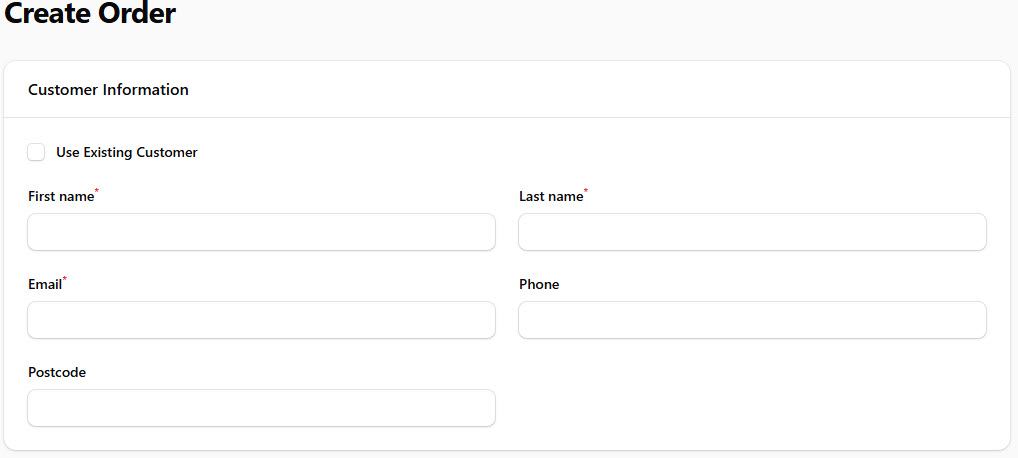

After the customer details are entered we can then proceed to the next section.
Order Details
Select the Channel for reference, this includes the standard channels and also the custom ones that you may have added.
Select the Check In and Check Out dates.
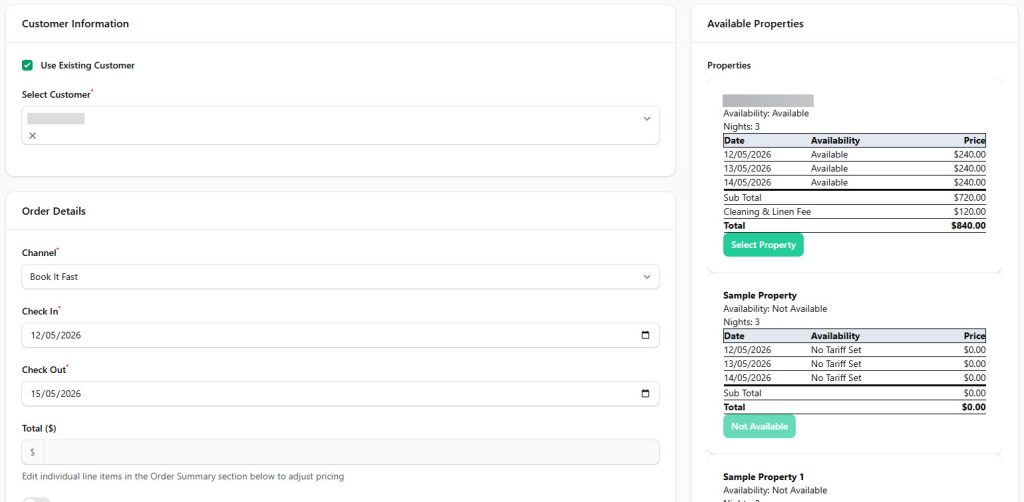
After you have selected the property the total price and summary will appear based on the standard rates as diplayed on the right hand results panel.
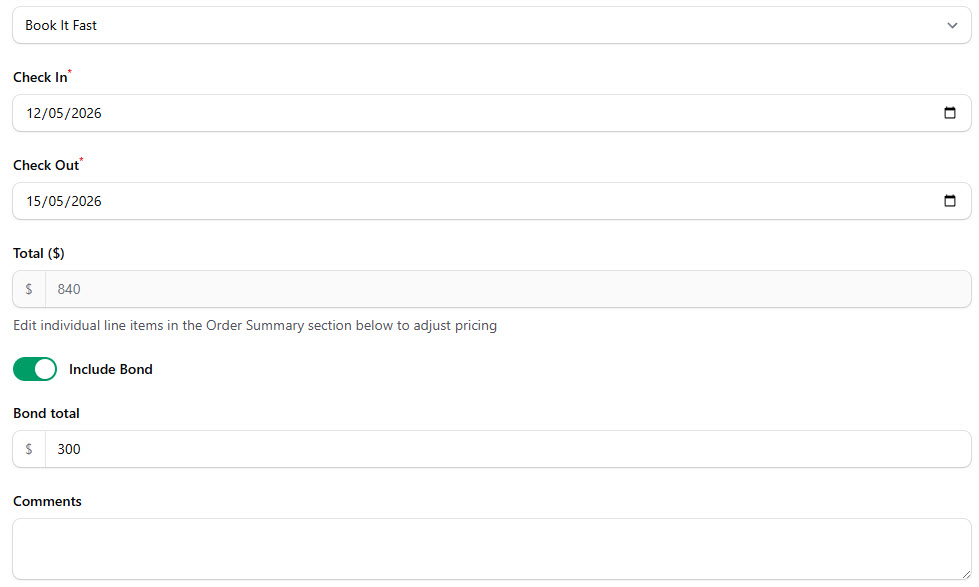
If you are using bonds, then you can select to include the bond and the bond amount. The bond amount can be adjusted for high risk bookings, or removed for low risk bookings based on your preference.
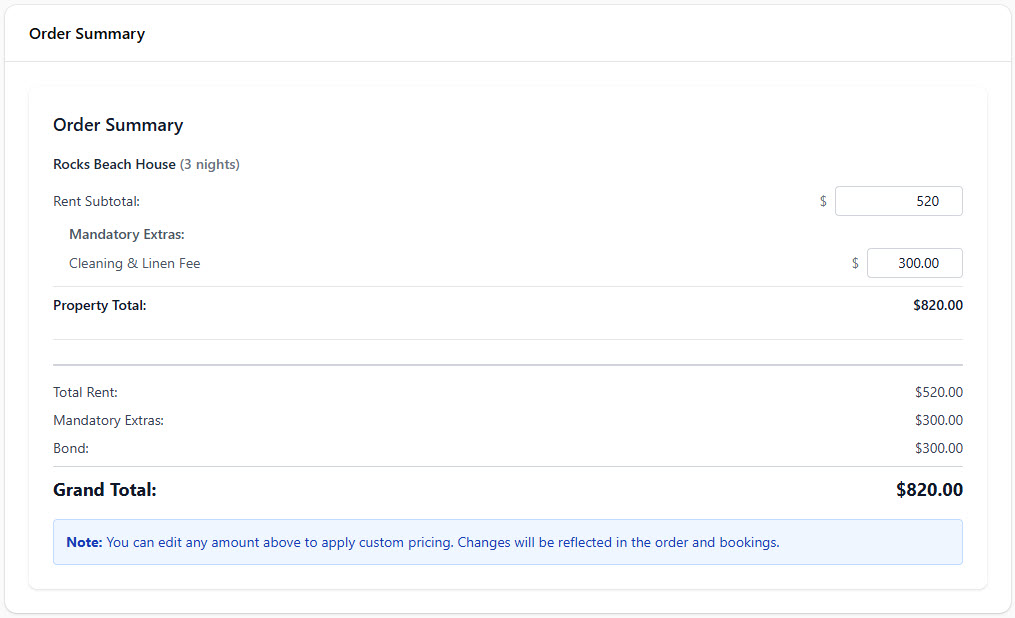
Below this is the summary. If you would like to change any of the amounts it will be reflected in the order.
After this click create and the order and bookings will appear in the system and block out calendars accordingly.
It will then take you back to the list of bookings where you can edit the order, send payment details and more.